In the world of digital displays and multimedia devices, two connectivity standards dominate: DisplayPort (DP) and HDMI. Both aim to transmit high-quality audio and video, but they differ significantly in design, performance, and use cases. This guide breaks down their key features, helps you decide which one suits your needs, and answers common questions about integrating both into your setup.
DisplayPort, developed by the Video Electronics Standards Association (VESA) and first released in 2006, is a digital interface designed for high-speed audio and video transmission. Its core strengths lie in supporting ultra-high resolutions, high refresh rates, and multi-display setups, making it a favorite for professional and gaming applications.
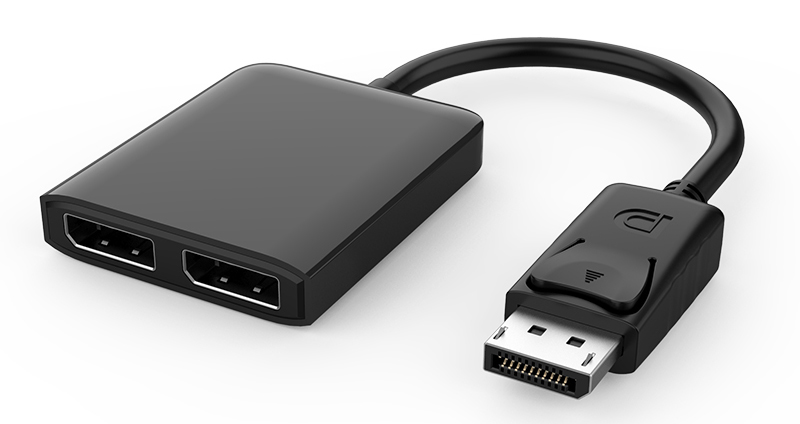
High Bandwidth: Ranges from 17.28Gbps (DP 1.2) to 80Gbps (DP 2.1), enabling resolutions up to 16K and refresh rates up to 480Hz (for 4K).
Multi-Stream Transport (MST): Allows a single port to drive multiple displays independently (e.g., 2x 4K@60Hz or 4x 1080p@144Hz).
DP Alt Mode: Enables USB-C ports to transmit DisplayPort signals, combining video, data, and power in one cable.
Professional-Grade Support: Optimized for color-accurate workflows (e.g., 12-bit color depth, HDR10) and industrial applications.
Standard DP: Rectangular port on desktops and monitors.
Mini DP: Smaller version for laptops (e.g., older MacBooks), requiring adapters for standard DP devices.
HDMI (High-Definition Multimedia Interface), introduced by the HDMI Forum in 2002, is the most widely used interface for consumer electronics. It simplifies connectivity by transmitting uncompressed video and multi-channel audio over a single cable, ideal for home theaters and casual use.
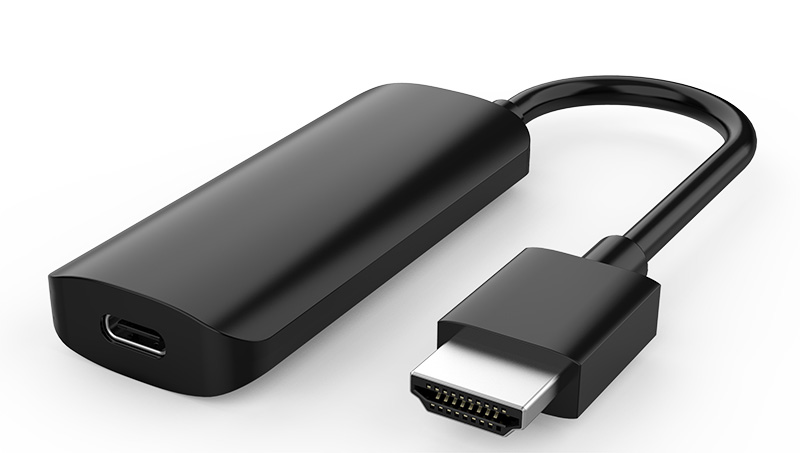
Universal Compatibility: Found on TVs, gaming consoles (PS5, Xbox), laptops, and projectors, with seamless plug-and-play setup.
Audio Return Channel (ARC/eARC): Allows TVs to send audio back to soundbars or receivers without extra cables (eARC in HDMI 2.1 supports lossless formats like Dolby Atmos).
Gaming Optimizations: HDMI 2.1 adds Variable Refresh Rate (VRR) and Auto Low Latency Mode (ALLM) for smooth, lag-free gaming.
Scalable Bandwidth: Ranges from 10.2Gbps (HDMI 1.4) to 48Gbps (HDMI 2.1), supporting 8K@60Hz and 4K@240Hz.
Type A (Standard HDMI): Most common, on TVs and gaming consoles.
Type C (Mini HDMI) and Type D (Micro HDMI): For compact devices like cameras and tablets.
Feature |
DisplayPort (DP 2.1) |
HDMI (2.1) |
Max Bandwidth |
80Gbps |
48Gbps |
Highest Resolution |
16K@60Hz, 8K@120Hz |
8K@60Hz, 4K@240Hz |
Multi-Display Support |
Native MST (up to 4 displays) |
Limited (requires specific hardware) |
Audio Features |
32-channel lossless audio |
eARC for Dolby Atmos/DTS:X |
Gaming Optimizations |
High refresh rates (480Hz) |
VRR/ALLM for console gaming |
Portability |
DP Alt Mode via USB-C |
Micro HDMI for mobile devices |
Typical Use Cases |
Gaming, professional design, VR |
Home theater, consoles, casual use |
Choose based on your primary needs:
High Refresh Rate Gaming: If you want 4K@144Hz or 2K@360Hz for competitive gaming, DP’s higher bandwidth is essential.
Multi-Display Setups: Professionals using 2+ monitors (e.g., 3x 4K for video editing) benefit from DP’s native MST support.
VR/AR Headsets: High-resolution, low-latency requirements (e.g., Valve Index) are best met with DP.
USB-C Devices: Laptops with USB-C (via DP Alt Mode) can simplify connectivity to external displays and docks.
Home Theater Systems: Connecting TVs, soundbars, and Blu-ray players, especially with eARC for surround sound.
Gaming Consoles: PS5 and Xbox Series X rely on HDMI 2.1 for 4K@120Hz and VRR/ALLM features.
Casual Use: Basic monitor setups (1080p@60Hz) or projecting from a laptop to a TV for presentations.

Many modern devices—like high-end graphics cards and monitors—include both DisplayPort and HDMI ports to cover all use cases. Here’s how to integrate them:
1. Dual-Interface Graphics Cards (e.g., NVIDIA RTX 40-series, AMD Radeon 7000-series):
Feature 3+ DP ports and 1-2 HDMI ports, ideal for multi-display gaming setups (DP for high-refresh monitors, HDMI for TVs).
2. Multi-Port Docks/Adapters (e.g., USB-C & DisplayLink Universal Hybrid Dock):
Convert a single USB-C (DP Alt Mode) into DP and HDMI outputs, supporting dual 4K@60Hz displays.
3. Dual-Input Monitors (e.g., Dell U3223QE, LG 32UN880):
Include both DP and HDMI ports, allowing seamless switching between a gaming PC (DP) and a console (HDMI).
DisplayPort and HDMI serve distinct yet overlapping roles:
DisplayPort excels in high-performance scenarios—gaming with extreme refresh rates, professional multi-display workflows, and USB-C portability.
HDMI dominates consumer electronics, offering universal compatibility for home theaters, gaming consoles, and casual use.
Choose DisplayPort for technical precision and future-proofing (e.g., 8K/16K), and HDMI for simplicity and wide device support. Many users benefit from devices that include both, ensuring flexibility across all applications.
1. Q: Are DisplayPort and HDMI cables interchangeable?
A: No. They use different connectors and protocols. Adapters (e.g., DP to HDMI) are needed for cross-compatibility, but features like MST or eARC may not work.
2. Q: Can HDMI 2.1 match DisplayPort 2.1 for gaming?
A: HDMI 2.1 supports 4K@240Hz and VRR, ideal for consoles, but DP 2.1 goes further with 4K@480Hz and better multi-display scaling for PC gaming.
3. Q: Do I need a specific cable for HDMI 2.1 or DisplayPort 2.1?
A: Yes. Look for "Ultra High Speed HDMI" (48Gbps) for HDMI 2.1, and "DP 2.1 Certified" cables for DisplayPort to ensure full bandwidth.
4. Q: Can I use DisplayPort Alt Mode on any USB-C port?
A: Only on USB-C ports that support DisplayPort Alt Mode (usually labeled with a monitor icon). Check your device’s specs.
5. Q: Which is better for HDR content: DisplayPort or HDMI?
A: Both support HDR10, but DisplayPort 2.1 adds dynamic HDR and higher color depths (12-bit), making it preferable for professional HDR workflows.


